
Quick answer: OBS Studio is a free app for screen recording and live streaming. To use it, run the Auto-Configuration Wizard, add sources to a scene, check your audio in the mixer, then click Start Recording or Start Streaming.
Let me guess.
You want to record your screen or go live, but every tutorial feels like it was written for a broadcast engineer.
I've been there, and it's frustrating.
Here's the good news: how to use OBS Studio isn't nearly as scary as it looks. It's free, it's open-source, and it runs on Windows, macOS and Linux.
In this guide, I'll walk you through everything from download to your first stream. No fluff. Just what works.
Ready? Let's jump in.
What Is OBS Studio and Why Does Everyone Use It?
OBS Studio is free, open-source software for video recording and live streaming. The name is short for Open Broadcaster Software, and honestly, that undersells it. Streamers, teachers, podcasters and YouTubers all lean on it because it costs nothing and does almost everything. The latest stable release is version 32.2.2, published on August 14, 2026. It supports Windows 10 and 11, macOS 13 or newer, and Linux. So whatever computer you own, you're probably covered.
Here's what you can do with it:
Record gameplay, tutorials and presentations
Stream to Twitch, YouTube and other platforms
Mix a webcam, your desktop and a microphone into one video
Turn your setup into a virtual camera for Zoom
Wait, there's more.
Version 33.0 is in release-candidate testing right now. It's tempting to grab it early. Don't. Stick with the stable build until the final release lands.
OBS Studio vs Streamlabs Desktop: Which One Should You Pick?
You'll bump into this question sooner or later, so let me answer it now.
Streamlabs Desktop (formerly Streamlabs OBS) is a separate app built around the same idea. Both can record and stream. The difference is how you get there.
OBS Studio | Streamlabs Desktop | |
|---|---|---|
Made by | The OBS Project | Streamlabs |
License | Free and open-source (GPL-2.0) | Check Streamlabs for current terms |
Setup style | Manual, highly customizable | Guided, with built-in themes and alerts |
Plugins | Large community plugin ecosystem | Built-in extras, fewer plugins |
Best for | Full control and learning the basics | Quick streaming setup with ready-made overlays |
My take? Learn OBS first. Everything you pick up here carries over to other tools.
How to Use OBS Studio: Download and Run the Setup Wizard
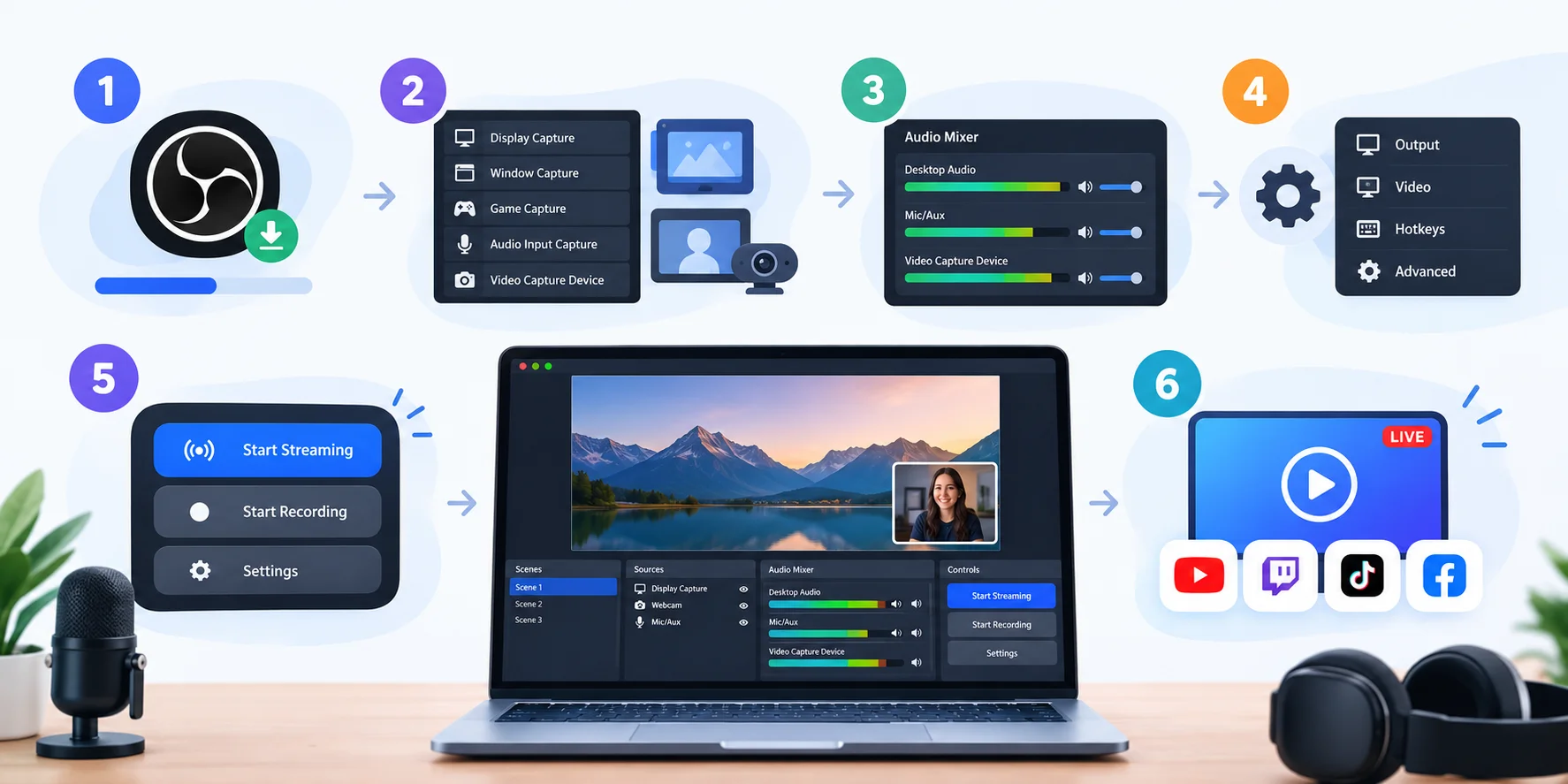
Every good OBS Studio setup starts with a clean install. You only need a few minutes and a clear goal: recording or streaming. The first launch includes a helper that picks sensible defaults for you, which saves a lot of guesswork. Honestly, this is the step most beginners skip, and then they wonder why their video lags. So let me show you exactly what to click, and what each choice means for your final video quality.
Go to the official OBS website and download the version for your system.
Install it like any other app.
Open OBS Studio for the first time.
Choose what matters most to you: streaming or recording.
Follow the prompts and let the wizard finish.
That helper is the Auto-Configuration Wizard. It checks your goal, your hardware and your network, then optimizes OBS for you.
Missed it? No problem. Open Tools and click Auto-Configuration Wizard anytime.
Pick Your Canvas Resolution Early
Before you build anything, check your base (canvas) resolution in the Video settings. This is the amount of space your sources have to fit into. It sounds boring, I know. But the official overview guide warns that if you change it later, you have to re-align and resize every source.
Ouch.
So decide first. For most people, 1920x1080 is a safe pick.
Scenes and Sources: Build What Your Viewers See
Think of scenes and sources as the heart of OBS. A scene is a layout. A source is one piece inside that layout, like your webcam, a game, an image or some text. You can build as many scenes as you like and switch between them in a click. The OBS overview guide calls scenes and sources the meat of the program, and I agree completely. Once this clicks, everything else gets easier.
Here's how to build your first scene:
Look at the Scenes dock and click the + button.
Give it a clear name, like "Gameplay" or "Talking Head."
Move to the Sources dock and click +.
Pick a source type and follow the prompts.
Drag the source in the preview to size and place it.
One rule trips people up all the time. Scene and source names are global in OBS, so no two can share a name. Keep your names unique and you'll avoid a headache.
Also, sources stack like layers. Whatever sits higher in the list shows on top.
If you stream and record in different ways, use scene collections. Each collection is a separate set of scenes, so your "Twitch" layouts never get mixed up with your "YouTube tutorial" layouts.
Which Capture Mode Should You Pick?
You'll see three screen options: game capture, window capture and display capture. Which one wins?
It depends on what you're recording.
Capture mode | Best for | Watch out for |
|---|---|---|
Game Capture | PC games | Can show a black screen with some games or anti-cheat |
Window Capture | A browser or a single app | Overlays on top may be captured too |
Display Capture | Showing several windows at once | Last resort for games; shows everything on that screen |
That ranking comes from a long OBS community forum thread where experienced users compare all three. It matches my own advice to beginners, too.
Need overlays or alerts? Add a browser source. It's powered by the obs-browser plugin, which lets you drop web-based overlays right into your scene.
Audio Setup: Make Your Voice Sound Clean
Bad audio kills good video. I'll say it again, because it matters: viewers forgive a soft image, but they leave when your voice crackles. The good news is that OBS gives you strong audio mixer controls out of the box. By default, it captures your desktop audio and your microphone. You can confirm that by watching the volume meters at the bottom of the window. Let's make sure both bars move, then polish your voice a little.
Here's your quick audio check:
Look at the Audio Mixer panel.
Speak into your mic and watch the meter move.
Play a video and watch the desktop audio meter.
Adjust the sliders until your voice peaks in the upper-middle range.
Simple, right?
Build a Simple Audio Filter Chain
Ready to sound a little more like a podcast host? Click the gear icon next to your mic and open Filters. Then add these in order.
Noise suppression comes first. OBS offers two types. According to StreamGeeks, Speex uses little CPU but sounds lower quality, while RNNoise sounds better but uses more CPU.
Next, add a noise gate. It cuts the hiss between your words.
Finally, add a compressor. It evens out the loud and quiet parts of your voice.
A word of caution from a detailed OBS forum guide: use only as much suppression as you need. Push it too far and your speech sounds muffled. Less is more.
My tip: set your mic gain first, before touching any filter. Filters can't rescue a signal that's too quiet or too loud to begin with.
Best OBS Recording Settings for Clear Video
Now for the question everyone asks: what are the best OBS recording settings? Here's the honest answer. It depends on your computer and your goal. Every guide you read will give slightly different numbers, and that's normal. What matters is understanding the logic behind each setting, so you can adjust with confidence. I'll give you a solid starting point, then you can tweak it as you learn what your machine handles comfortably.
Follow these steps:
Open Settings and click the Output tab.
Go to the Recording section.
Choose your encoder. Pick your graphics card (hardware encoder) if it's listed, or choose x264.
Set rate control to CBR.
Choose a video bitrate that fits your content.
Pick a recording path you'll remember.
According to Restream's recording guide, you should set the audio bitrate to 320 on every track you use. They also suggest a much higher video bitrate for fast-moving footage.
Meanwhile, Castr's guide shows an example with the H.264 encoder, CBR, a keyframe interval of 2 and the High profile.
See the difference? Two respected guides, two different bitrates.
That's why I tell you to test a short clip first. Record 30 seconds, watch it, then adjust.
Starting Settings by Use Case
Use this table as a starting point, not a rule.
Use case | Encoder | Rate control | Bitrate guidance | Source |
|---|---|---|---|---|
Local recording (high motion) | GPU encoder or x264 | CBR | Up to 40,000 Kbps suggested | Restream |
Local recording (general example) | H.264 | CBR | 4,000 Kbps in the example | Castr |
Twitch (standard streaming) | H.264 | CBR | Up to 6,000 kbps | LiveReacting |
Always check Twitch's and YouTube's own documentation for current limits before you go live.
Once you’ve recorded your first clip, you’ll probably want to trim and polish it. My CapCut AI review shows one easy way to edit footage like this.
Lost your video file? Click File, then Show Recordings. By default, OBS saves to your Videos folder.
How to Stream with OBS Studio to Twitch and YouTube
Going live feels huge the first time. Your heart rate jumps, your hands shake a little, and that's okay. The technical part is actually the easy part. You connect OBS to your platform, check your settings and press one button. Both Twitch and YouTube are built into OBS, so you don't need any extra software. Below, I'll show you both routes. Pick whichever platform you plan to use first. You can always add the other one later.
Stream to Twitch
Open Settings, then Stream.
Set Service to Twitch.
Click Connect Account and log in, or paste your stream key instead.
Leave the server on Auto unless you need a specific region.
Click Start Streaming.
Restream's Twitch walkthrough covers the same flow with screenshots.
Here's a pro tip. Never share your stream key with anyone. Treat it like a password.
Stream to YouTube
Open YouTube Studio and enable live streaming on your account.
Copy your stream key from the stream settings.
In OBS, open Settings, then Stream.
Choose YouTube as the service and paste the key.
Click Start Streaming.
Heads up: Restream's YouTube guide notes that a new account may need up to 24 hours before live streaming activates. So don't wait until the last minute.
Want to go deeper on gear? Read my guide to the best microphones for streaming and my walkthrough on setting up a Twitch channel.
Studio Mode, Replay Buffer and Virtual Camera
Once you've nailed the basics, a few extra features make your content look far more polished. None of them are required. But if you want to look like a pro, they're worth ten minutes of your time. These tools solve real problems: switching scenes without surprising your viewers, saving a great moment you almost missed, and using your OBS layout inside video calls. Let me show you how each one works in plain English.
Studio Mode lets you prepare changes without your audience seeing them. The official overview explains that you can adjust scenes in the background, then push them live. OBS ships with Fade and Cut scene transitions, and you can add custom Quick Transitions too.
Replay Buffer saves the last few seconds of action on demand. You enable it in Settings > Output (Advanced mode), then start it from the main window and save clips with a hotkey. This OBS forum resource walks through a setup. It was written for an older version, so double-check the menu names in your build.
Virtual Camera turns your whole OBS scene into a webcam. Click Start Virtual Camera, then choose "OBS Virtual Camera" as your video input in Zoom or similar apps. Restream's support article shows the idea in action.
Pretty cool, right?
Quick Fixes for Common OBS Problems
Even a perfect setup hits a snag sooner or later. Don't panic when it happens. Most OBS problems fall into a few familiar groups, and each has a simple first move. The status bar at the bottom of the window usually tells you what's wrong, so start there. Below are the issues I see beginners run into most. Try these quick fixes before you spend an hour digging through forums or reinstalling everything from scratch.
Message or symptom | Likely cause | First fix |
|---|---|---|
Black screen in Game Capture | Wrong capture mode, GPU mismatch, or anti-cheat | Try Window Capture, then Display Capture; run OBS as administrator |
"Encoding overloaded" | Your CPU or GPU can't compress video fast enough | Lower resolution or FPS; switch to a hardware encoder |
Dropped frames | Network trouble | Lower your bitrate or pick a different server |
NVENC stopped working after an update | Old graphics driver | Update to NVIDIA driver 570 or newer |
Still seeing stutter or lag after these fixes? A sluggish PC can be part of the problem. This guide on how to fix slow startup in Windows can help free up resources before you stream.
The black-screen fix follows the forum thread mentioned earlier. The driver requirement comes from the 32.2 release notes.
Also, if you use plugins, read this. OBS 33.0 changes the plugin folder layout, and old locations keep working until OBS 34.0, according to the 33.0 release candidate notes.
OBS Studio FAQ
Is OBS Studio free?
Yes. OBS Studio is free, open-source software released under the GPL-2.0 license. There's no subscription and no watermark. You can download it from the official OBS website for Windows, macOS or Linux.
How do I record my screen with OBS Studio?
Add a Display Capture or Window Capture source to a scene, check your audio meters in the Audio Mixer, then click Start Recording. When you finish, click Stop Recording. Open File > Show Recordings to find your video.
What bitrate should I use for Twitch?
Standard Twitch streaming uses H.264 at up to 6,000 kbps, according to a Twitch setup guide. Your upload speed matters too. Pick a bitrate comfortably below it, and confirm current limits in Twitch's documentation.
Why is my OBS Game Capture black?
The usual causes are running OBS and the game on different graphics cards, anti-cheat software blocking the capture, or missing administrator rights. Try running OBS as administrator first. If that fails, switch to Window Capture or Display Capture.
Where does OBS save my recordings?
By default, OBS saves recordings to your Videos folder. Click File > Show Recordings to open it. You can change the path under Settings > Output > Recording, as Restream's guide explains.
Can I use OBS as a webcam in Zoom?
Yes. Click Start Virtual Camera in OBS, then select "OBS Virtual Camera" as your camera in Zoom or another video app. Everything in your active scene appears as your video feed.
Final Thoughts on How to Use OBS Studio
You now know how to use OBS Studio from start to finish. That's a big deal.
We covered the Auto-Configuration Wizard, scenes and sources, audio filters, recording settings, streaming to Twitch and YouTube, and a handful of power features. You also have a quick troubleshooting table for when things go sideways.
Here's my advice.
Don't try to master everything today. Build one scene. Record one short clip. Listen to your audio. Then improve it a little each week.
Want a second opinion on beginner setups? Windows Central's OBS beginner guide is a handy read.
Now open OBS, hit record, and make something.
Found this helpful? Share it with others who might benefit from these insights!
Submit Your AI Tool