
Slow startup Windows is usually caused by too many high-impact startup apps, outdated storage and graphics drivers, or corrupted system files not by a broken PC. Before you change anything, measure your actual boot duration in Event Viewer under Event ID 100, then work through the nine fixes below in order. If you're still waiting after all nine, your bottleneck is hardware, and an NVMe SSD is the fix.
I still remember the morning my laptop took two minutes and eleven seconds to reach the desktop. I timed it. Twice.
And here's the thing: almost every guide you'll find tells you to disable a few startup apps and calls it a day.
That's not a fix. That's a guess.
In this guide, I'm going to show you exactly how I diagnose and repair slow startup Windows problems — measuring first, fixing second. You'll learn how to read your real boot time, spot the app or driver stealing your seconds, and decide honestly whether Fast Startup is helping you or hurting you.
Let's dive in.
Why Your PC Boots Slowly (The Real Causes)
Before you touch a single setting, you need to understand what's happening between the power button and your desktop. Windows loads firmware, initializes drivers, starts services, applies policies, then launches your startup programs — and any one of those stages can stall. Microsoft itself points to limited storage space, too many startup apps, outdated software, and aging hardware as the usual suspects. In my experience, though, one cause dominates everything else: high-impact startup apps piling up silently over months.
Other culprits I see constantly:
Outdated device drivers, especially storage and graphics drivers
Corrupted system files
A mechanical HDD instead of an SSD
Malware or adware launching at boot
A bad Windows cumulative update
Core Isolation / Memory integrity taxing an older CPU
One quick note on freshness before we start. Microsoft is retiring the legacy inbox troubleshooters and the Microsoft Support Diagnostic Tool (MSDT), replacing them with the Other troubleshooters page in Settings. Devices on Windows 11 22H2 and earlier — and all of Windows 10 — still have the old tools. If you're on 24H2 or 25H2, use the Settings path instead.
Now let's measure.
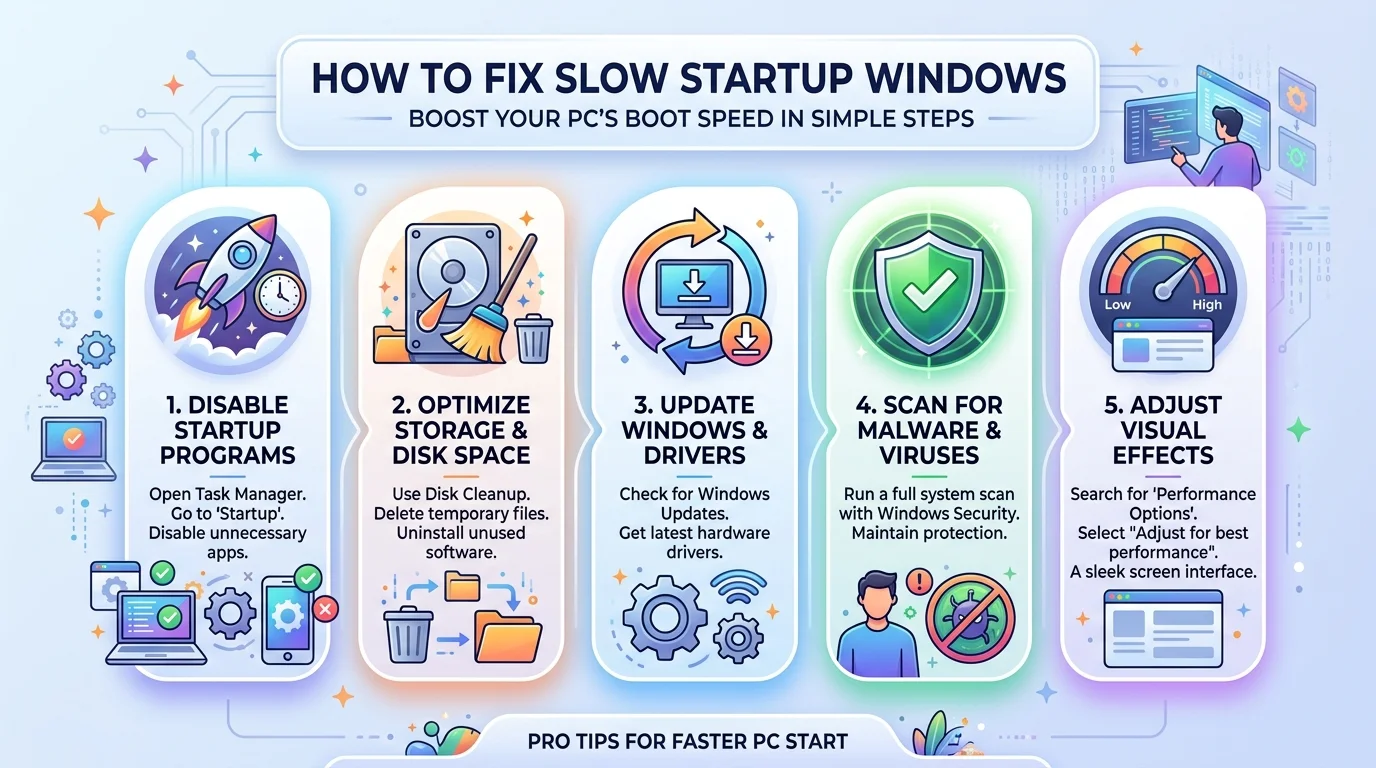
The 9-Step Fix for Slow Windows Startup
Work through these in order. Steps 1 through 3 are diagnosis. Steps 4 through 8 are repair. Step 9 is the one nobody wants to hear but everybody eventually needs.
Step 1: Check Your Real Boot Time in Event Viewer
Guessing is expensive. Measuring takes 90 seconds. Windows quietly logs every boot in a place most people never open, and once you know where it lives, you'll never troubleshoot blindly again. This log gives you your boot duration in milliseconds and — better still — names the specific app, driver, or service responsible for the delay. That's the difference between fixing your PC and fiddling with it.
Here's how:
Press Win + R, type
eventvwr.msc, press Enter.Go to Applications and Services Logs → Microsoft → Windows → Diagnostics-Performance → Operational.
Filter for Event ID 100. That's your boot duration.
Then filter 101–110 for degradation events.
Use this table to translate what you find. It comes straight from Microsoft's own event reference:
Event ID | What it means |
|---|---|
100 | Windows has started up (total boot duration) |
101 | An application took longer than usual to start |
102 | A driver took longer to initialize |
103 | A startup service took longer than expected |
106 | A background optimization task overran |
107 | Machine policy slowed the startup process |
108 | User policy slowed the startup process |
109 | A device took longer to initialize |
110 | Session manager initialization caused a slowdown |
What if Event ID 100 is missing?
On some builds starting with Windows 10 20H2, Event ID 100 stopped being logged. If yours is gone, fall back to Task Manager → Startup apps → Last BIOS time, or go pro with a Windows Performance Analyzer boot trace — the exact tool Microsoft support engineers recommend for root-cause analysis.
Step 2: Disable Your High-Impact Startup Programs
This is where the biggest wins live, and it's genuinely the lowest-risk change on this list. Every app you install begs for permission to launch at boot — cloud sync clients, game launchers, updaters, chat apps — and Windows obediently loads all of them before handing you your desktop. Disabling them uninstalls nothing. Your apps still work; they just stop demanding attention the second you power on.
Do this now:
Press Ctrl + Shift + Esc to open Task Manager.
Click Startup apps.
Sort by Startup impact.
Right-click anything marked High that you don't need immediately → Disable.
Keep your antivirus and audio drivers. Disable the rest. Restart, then re-measure.
While you're auditing what launches at boot, it's worth auditing what's installed at all. A lot of the software slowing your machine down is stuff you stopped using a year ago — and half of it has a lighter, browser-based replacement now. Our roundup of the best free AI tools available in 2026 covers plenty of web-based options that never touch your startup list.
Step 3: Run a Clean Boot to Isolate the Guilty Service
Sometimes the delay isn't an app at all — it's a background service quietly waiting on a network timeout. A clean boot strips startup down to Microsoft-only components, giving you a clean baseline to compare against. Support engineers in Microsoft's own Q&A threads recommend exactly this: disable everything non-Microsoft, measure, then re-enable in batches until the slowdown returns.
Open msconfig (System Configuration).
Under Services, tick Hide all Microsoft services, then Disable all.
Restart. Time it.
Re-enable in halves until the offender reveals itself.
Patient? Yes. Effective? Absolutely.
Step 4: Repair Corrupted System Files With DISM and SFC
Corrupted system files produce a very specific symptom: a boot that used to be fast and suddenly isn't. Windows ships two repair tools that fix this without reinstalling anything. Run them in order — DISM first repairs the component store (the master copy of your system files), then SFC uses that healthy store to replace damaged protected files. MiniTool's boot-time testing confirms this sequence matters.
Open Command Prompt as administrator and run:
DISM /Online /Cleanup-Image /RestoreHealth
sfc /scannow
Restart when both finish.
Step 5: Update Your Storage and Graphics Drivers
Your storage and graphics drivers sit directly on the critical boot path, so a stale one costs you seconds every single time. Go to Settings → Windows Update → Advanced options → Optional updates for driver packages first. Then check your manufacturer's support site — OEM-tuned drivers from Dell, HP, Lenovo, and Intel are frequently newer than what Windows Update offers.
Reinstall, don't just update. That distinction matters more than you'd think.
Step 6: Scan for Malware and Adware
Malware doesn't announce itself with a skull icon anymore. It runs quietly at boot, eating disk I/O while you stare at a spinner. Run a full scan with Microsoft Defender (Windows Security → Virus & threat protection → Scan options → Full scan), then follow up with a dedicated adware remover. Microsoft's own support responders routinely recommend a second-opinion adware cleaner alongside Defender, because bundled toolbars and "optimizers" often slip past standard antivirus definitions.
Step 7: Free Up Disk Space and Optimize Your Drive
A drive above roughly 90% capacity slows down measurably, and Windows needs headroom for its page file and update staging. Open Storage Sense (Settings → System → Storage) and let it clear temporary files, then run Defragment and Optimize Drives as Microsoft recommends. On an SSD this issues a TRIM command rather than a true defrag — which is exactly what you want.
Step 8: Roll Back a Bad Windows Update
If your boot time collapsed overnight with no other changes, suspect the last cumulative update. This happens more often than Microsoft likes to admit, and users in Microsoft Q&A have traced multi-minute boot delays to specific KB numbers interacting badly with certain SSD models.
Go to Settings → Windows Update → Update history → Uninstall updates, remove the most recent KB, and restart. If that fixes it, pause updates for a few weeks while Microsoft patches the patch. Still broken? An in-place repair upgrade using a Windows 11 ISO reinstalls the OS while preserving your files, settings, and installed software.
Step 9: Upgrade to an NVMe SSD
I'll be straight with you. If you've worked through all eight steps above and you're still waiting, your bottleneck isn't software — it's a spinning disk servicing maybe 100 operations per second while Windows asks for thousands. No amount of startup optimization beats physics.
A modern NVMe SSD is the single highest-return upgrade you can make on a slow PC.
Boot scenario | Typical time to desktop |
|---|---|
HDD, Fast Startup off | 60–120 seconds |
HDD, Fast Startup on | 30–90s drops to 10–20s |
SATA SSD | 15–25 seconds |
NVMe SSD | Under 15 seconds |
Do the math on what that's actually costing you. Two wasted minutes per boot, twice a day, is roughly twelve hours a year — and that's before you count the app launches, file saves, and exports that crawl on the same drive. If you bill by the hour, this upgrade pays for itself inside a month. It's the same logic behind our guide to the best AI tools for freelancers: buy back the hours, and everything else compounds.
If your PC is more than four years old and still running an HDD, buy the SSD. Add 16GB of RAM while you're there. You'll never regret it, and honestly? You'll wonder why you waited this long.
Should You Disable Fast Startup? My Honest Take
Here's where I disagree with roughly 90% of the blogs ranking for this keyword. They all tell you to switch off Fast Startup (also called hiberboot or hybrid shutdown). But Microsoft explicitly states that Fast Startup is enabled by default and that disabling it is not recommended. Why? Because it saves your kernel session to hiberfil.sys and reloads it on power-on, skipping a full cold boot entirely.
So don't disable it reflexively.
Here's how the four power states actually differ:
Mode | What's saved | Speed | Best for |
|---|---|---|---|
Fast Startup | Kernel + drivers to | Fast | Default daily shutdown |
Full Shutdown | Nothing; memory cleared | Slowest | Dual-boot, BIOS access, clean state |
Hibernate | Entire session, apps included | Medium | Resuming exact work later |
Sleep | RAM stays powered | Instant | Short breaks |
Do disable Fast Startup if you're dual-booting, if you need frequent BIOS access, or if Event ID 102 fingers a driver that misbehaves across hybrid shutdowns.
Control Panel → Power Options → Choose what the power buttons do → Change settings that are currently unavailable → untick Turn on fast startup.
And remember: Restart always performs a full cold boot, while Shut down uses the hybrid path. If restarting feels slower than shutting down, that's normal — not a bug.
Frequently Asked Questions
Below are the questions I get asked most often about slow startup Windows problems, answered in plain language.
How long should Windows take to boot?
On a healthy NVMe SSD, expect under 15 seconds from power button to usable desktop. A SATA SSD lands around 15–25 seconds, and an HDD anywhere from 30 to 120 seconds depending on Fast Startup. Anything over two minutes signals a real problem worth diagnosing.
Is it safe to disable startup apps?
Yes. Disabling a startup app only stops it from launching automatically at boot — the program still opens normally when you click it. Nothing is uninstalled and no data is lost. Leave your antivirus and audio drivers enabled.
What is "Last BIOS time" in Task Manager?
It's the time your firmware spends on POST before handing control to Windows. A figure above 10 seconds usually points at firmware settings, not Windows. Try switching from Legacy BIOS to UEFI, disabling unused boot devices, and updating your motherboard firmware.
Does disabling Fast Startup make Windows faster?
Usually the opposite. Fast Startup exists to make boot quicker, and the gains are dramatic on HDD systems. Disable it only to troubleshoot dual-boot conflicts, BIOS access issues, or a driver flagged by Event ID 102.
Why is my PC slow only after a Windows update?
A cumulative update can introduce driver or firmware incompatibilities. Check Settings → Windows Update → Update history, note the most recent KB number, and uninstall it. If boot speed recovers, pause updates temporarily.
Measure first. Fix second. Upgrade last.
Your boot time is worth more than the price tag.
Found this helpful? Share it with others who might benefit from these insights!
Submit Your AI Tool