
Quick answer: "Search Google or type a URL" is the placeholder text in Chrome's omnibox, its combined address bar and search box. It means you can type keywords to run a search, or enter a web address to open a site directly. Chrome works out which one you meant as you type.
You've seen that line thousands of times.
Maybe tens of thousands.
But have you ever stopped to ask what it's really doing? I did, and I ended up deep in Google's own help pages, Chromium documentation, and years of browser history.
Here's what I found, and how you can use it better.
What Does "Search Google or Type a URL" Actually Mean?
Let's start with the basics, because they matter more than you'd think.
That phrase appears in Chrome's address bar and on the new tab page. It's a short instruction telling you the same box can do two jobs. You can look something up, or you can jump straight to a site you already know.
Simple? Yes.
But there's clever design underneath it.
The Omnibox in Plain English
The proper name for this box is the omnibox. Google's Chrome for Developers documentation uses that exact term for the address bar.
Before it existed, browsers usually gave you two separate fields. One took web addresses and the other took searches.
Annoying, right?
Chrome merged them, and other browsers followed. GeeksforGeeks points out that Firefox has its "Awesome Bar", while Safari and Opera also blend search and address entry.
Why You Might See Different Wording
Here's a small quirk.
Some people see "Search or type web address" instead. PageTraffic notes the variation and says the meaning stays the same.
Different words, same idea.
Where the Omnibox Came From
Every good feature has an origin story, and this one starts in 2008.
The omnibox wasn't an accident. It was a deliberate bet on simplicity, and it shaped how billions of people browse today. Understanding that history explains why the box behaves the way it does.
Let me take you back.
Chrome's first beta arrived on September 2, 2008, with a comic by Scott McCloud explaining its ideas to the press. InfoQ's coverage from that week shows how sparse and simple the interface looked next to its rivals.
Engineer Addy Osmani recalls that a single box for both search and URLs was novel in 2008, and that smart suggestions based on your history were there from day one.
And the thinking behind it? Designer Hannah Lee explains that Chrome's primary design principle was to reduce cognitive overhead, so the team merged the search box with the address bar.
That's a lesson for anyone building anything.
Fewer decisions. Less friction.
How Chrome Decides: Search or URL?
Now for the part I find genuinely fascinating.
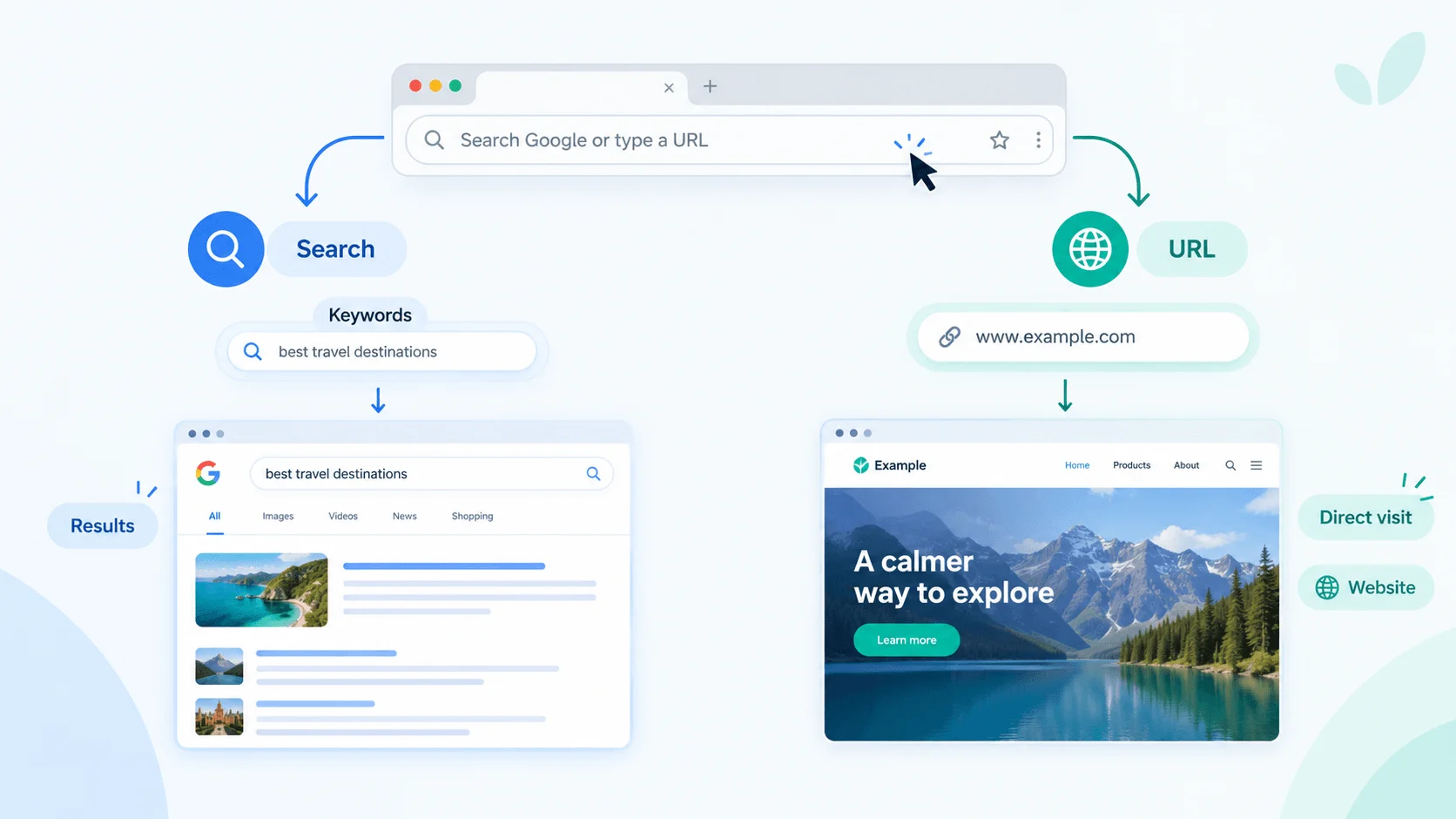
Every time you type, Chrome has to guess your intent in a split second. Are you trying to go somewhere, or learn something? Get it wrong often and you'd hate the browser. So it reads a few signals and responds instantly.
Here's roughly how it works.
The Signals Chrome Reads
Chrome checks whether your text looks like a web address. If it does, it loads the site. If it reads like ordinary words, it sends them to your default search engine as a query.
Type "best coffee shops" and you get search results.
Type "cnn.com" and you go straight to the site.
Type something in between, like "cnn.com economy", and TechEasify says Chrome will usually offer both a site suggestion and a search suggestion.
Where the Suggestions Come From
As you type, a dropdown appears with autocomplete suggestions. These blend your browsing history, your bookmarks, and query ideas from the search engine.
Chromium's prefetch design document explains that a fresh set of suggestions is fetched every time your input changes. That's why the bar feels so quick.
Sneaky, but useful.
Search Google or Type a URL: Which Should You Use?
This is the question that matters most, and it's really a question about search intent.
Each time you click the bar, you have a goal. Sometimes you know exactly where you're headed. Other times you're just exploring. Matching your method to that goal saves time, and, as you'll see later, it can also keep you safer.
Here's a side-by-side comparison.
Factor | Search Google | Type a URL |
|---|---|---|
Best for | Exploring, comparing, answering questions | Visiting a site you already know |
Search intent | Informational | Navigational |
Speed | One extra click on the results page | Straight to the site |
Main risk | Fake pages and misleading ads in results | Typos that land on lookalike domains |
Best habit | Read the domain before you click | Bookmark important sites |
When Searching Wins
Search when you're exploring.
Maybe you don't know the exact site. Maybe you want reviews, comparisons, or a quick answer. That's informational intent, and a search engine is built for it.
Use it for "how do I…", "what is…", and "best…" style questions.
When Typing a URL Wins
Type the address when you already know your destination.
That's navigational intent, and it's faster because you skip the results page entirely. For daily sites, a bookmark is quicker still.
Think of it this way.
Searching is window shopping. Typing a URL is walking straight into the shop you know.
What Search Intent Means for Your Own Content
Here's where my SEO brain kicks in.
People who search "search google or type a url" mostly want a plain definition first. After that, many want settings help, safety advice, or the meme. That's mostly informational intent with some troubleshooting mixed in.
Want tools that help you analyze search intent and optimize your pages for it? Check out my roundup of the best AI SEO tools in 2026.
Step-by-Step: How to Use the Omnibox Like a Pro
Enough theory. Let's actually do something.
The steps below are short, repeatable, and take less than five minutes to learn. Try them in order, and you'll browse faster by the end of today. I've also included a table of shortcuts so you can bookmark this page and come back.
Omnibox shortcuts at a glance
Shortcut | What it does |
|---|---|
Ctrl+L (Windows) / Cmd+L (Mac) | Jumps your cursor into the address bar |
@bookmarks | Searches your saved bookmarks |
@history | Searches your browsing history |
@tabs | Searches your open tabs |
@gemini | Opens a conversation with Gemini |
Tab after a site name | Searches inside that site (Tab to Search) |
chrome://settings/search | Opens your search engine settings |
Now, the steps.
Jump into the bar. Press Ctrl+L or Cmd+L. No mouse needed.
Pause for one second. Ask yourself, "Do I know the address?" If yes, type it. If no, type your keywords.
Search your own stuff. Type @bookmarks, @history, or @tabs, then press Tab or Space and add your term.
Try Tab to Search. Type a site's address, then look for the option to search that site directly.
Press Enter. That's it.
About Tab to Search: Chromium's own guide explains that the search is done by the site itself, not by Google or Chromium. It relies on OpenSearch, a standard for describing search URLs.
How to Change the Search Engine Behind the Bar
Not a Google fan? No problem.
Or maybe your bar keeps sending you somewhere odd. Either way, you're in control. Chrome lets you choose which search engine handles what you type, and the whole process takes under a minute.
On a Computer
Follow these steps on desktop, based on Google's Chrome Help page:
Open Chrome.
Click the three dots at the top right, then choose Settings.
Select Search engine.
Under "Search engine," choose Change and pick your preferred option.
You can also add site search shortcuts there. Just enter a name, a keyword, and the results-page address with %s where the query goes.
On Android
Open Chrome, tap the menu, go to Settings, then tap Search engine under "Basics." Google's Android instructions confirm these steps.
Want to make Google your default in other browsers too? Google's Search Help page covers that.
If the Search Engine Keeps Changing
Pay attention here.
Chrome's own guidance says unexpected search engine changes might mean malware. If a random engine keeps taking over your bar, treat it as a warning sign and scan your device.
Is It Safer to Type a URL or Search Google?
Ah, the great debate.
Honestly, both sides have a point, and I don't think there's one perfect answer. What matters is knowing where each risk hides. Once you see that, you can choose confidently without overthinking every click.
Let me walk you through both.
The Case for Typing the URL
Search results can include fake pages and misleading ads.
That's why many guides, including this 2026 safety breakdown from RightBlogger, suggest typing the address, or using a bookmark, for banking, payments, or anything involving passwords. You skip the results page entirely.
Sensible.
The Case for Searching
But typing has its own trap.
One wrong letter can send you to a lookalike site. That's typosquatting, a form of cybersquatting that relies on typing mistakes. A related trick is the spoofed URL, where a fake address looks familiar enough to fool you.
Navoto's beginner guide gives a classic example: "paypa1.com" with a number 1 instead of a letter L.
Ouch.
My Simple Safety Routine
Here's what I actually do:
Bookmark every site where money or logins are involved.
Use the bookmark instead of typing or searching.
Read the full domain before entering any password.
Check the domain spelling letter by letter for lookalike swaps.
Slow down whenever a page feels urgent or rushed.
Boring? Yes.
Effective? Absolutely.
The AI Era: Your Address Bar Is Becoming a Prompt Box
Now things get interesting.
The omnibox has quietly stopped being just a place for addresses. Google has been pushing Gemini and AI Mode into it, and that changes what "Search Google or type a URL" will mean over the next few years. Let me explain what's happening, and what's still unconfirmed.
AI Mode Arrives in the Address Bar
On September 18, 2025, TechCrunch reported that Google was bringing AI Mode into the Chrome address bar. You can ask complex questions with follow-ups, and Chrome can suggest questions based on the page you're viewing.
You can still use the bar the old way, too.
Tom's Guide lists this among 10 new Gemini in Chrome features. Want a deeper look at the assistant behind them? I've broken it down in my Google Gemini review for 2026.
Shortcuts Came First
Before that, Google had already added address bar shortcuts. Yahoo Tech, summarizing Android Authority's reporting, says Google introduced them in late 2022, and TechRadar covered the @gemini shortcut that followed.
One detail worth knowing: Chrome Help says you can't set Gemini as your default search engine. It's a shortcut, not a replacement.
Why This Matters More Than You Think
Chrome is the browser most of the web uses. In July 2026, it held about 68% of global browser share, ahead of Safari at roughly 16% and Edge at roughly 5%, according to StatCounter data summarized by TestMu AI. You can check the live numbers on StatCounter's site.
So when Chrome changes its address bar, search habits change with it. Curious what people are actually typing into Google right now? See my analysis of the most searched AI tools on Google in 2026.
The Meme: Why Everyone Jokes About This Phrase
I couldn't write this article without mentioning the meme.
It's everywhere. People turn the phrase into a joke about confusion, overthinking, and how much we lean on search for everything. Some versions poke fun at people who type the prompt itself into the bar, as Empocorp describes.
Fair enough. That's funny.
A word of caution, though. The origin is murky, and the articles about it disagree on dates. So I'd treat it as internet culture, not a documented event. I wouldn't build any hard claims on it.
Frequently Asked Questions
These are the questions I hear most, answered as directly as I can.
Why does Chrome say "Search Google or type a URL"?
It's the placeholder text telling you the box does two jobs. You can type keywords to search, or enter a web address to visit a site directly.
Is the omnibox the same as the address bar?
Yes, essentially. "Omnibox" is Chrome's name for its combined address bar and search box.
Why is Chrome searching instead of opening my website?
Chrome treats your text as a search when it doesn't look like a valid web address. Check the spelling and include the full domain, such as example.com.
How do I change the search engine in the address bar?
Open Chrome Settings, select Search engine, then choose Change. On Android, tap Settings, then Search engine under "Basics."
Should I search or type a URL for my bank?
Bookmark your bank's real address and use the bookmark. That avoids both fake search results and typing mistakes.
What is AI Mode in the Chrome address bar?
It's a feature that lets you ask complex questions with follow-ups directly from the address bar. Google announced it on September 18, 2025, and availability can vary by region and language.
Can I set Gemini as my default search engine in Chrome?
No. Chrome Help states you can't edit, delete, or set Gemini as your default search engine. You can use the @gemini shortcut instead.
Final Thoughts
So, there you have it.
That short phrase, "Search Google or type a URL," hides a lot: a 2008 design decision, a smart guessing engine, real security lessons, and now an AI-powered future.
Here's what I'd take away.
Match your method to your search intent. Bookmark the sites that matter. Learn two or three shortcuts. And keep watching how the omnibox evolves, because it clearly isn't finished changing.
Next time you click that bar, you'll know exactly what it's asking you.
Go on, try Ctrl+L right now.
Found this helpful? Share it with others who might benefit from these insights!
Submit Your AI Tool