
Quick answer: To unzip a file, right-click it and choose Extract All on Windows, or double-click it on a Mac. On iPhone, Android and Chromebook, tap or double-click it in the Files app. On Linux, run unzip file.zip. Standard ZIP files need no extra software.
Wondering how to unzip a file without installing anything weird? You're in the right place.
I'll walk you through every major device, then show you what to do when things go wrong. Let's get into it.
What Does It Mean to Unzip a File?
Before the steps, let's clear up what's actually happening. Once you understand it, errors stop being scary. I promise.
A ZIP file is an archive that bundles files together and usually shrinks them. Unzipping simply reverses that process. Your original files come back unchanged.
According to Wikipedia's ZIP overview, the format was first released on 14 February 1989 and is defined in PKWARE's APPNOTE specification, whose latest version is 6.3.10 (November 2022). Most ZIPs use DEFLATE compression, which is lossless.
Other names for unzipping include extracting, decompressing and unpacking. They all mean the same thing. If you want the reverse, I cover that in my guide on how to zip a file.
How to Unzip a File: Quick Comparison by Device
Not everyone wants to read a whole article. Fair enough. Here's a cheat sheet that shows the built-in tool, the steps and the limits for each device.
Find your device, then jump to the matching section below for the full walkthrough.
Device | Built-in tool | Steps | Limits |
|---|---|---|---|
Windows 10/11 | File Explorer | Right-click, then Extract All | Windows 11 24H2 can't work with encrypted archives |
Mac | Archive Utility | Double-click the ZIP | Needs enough free disk space |
iPhone/iPad | Files app | Tap the ZIP | Creates a new folder |
Android | Files by Google | Tap the ZIP, then Extract | ZIP files only |
Chromebook | Files app | Double-click the ZIP | Mounts the archive as a view |
Linux |
|
| May need installing |
How to Unzip a File on Windows
Windows has handled ZIP files natively for years, so you don't need extra software for everyday jobs.
Below are three methods, from the one everybody uses to the one that makes you feel like a hacker. Pick whichever suits your mood. Same result either way.
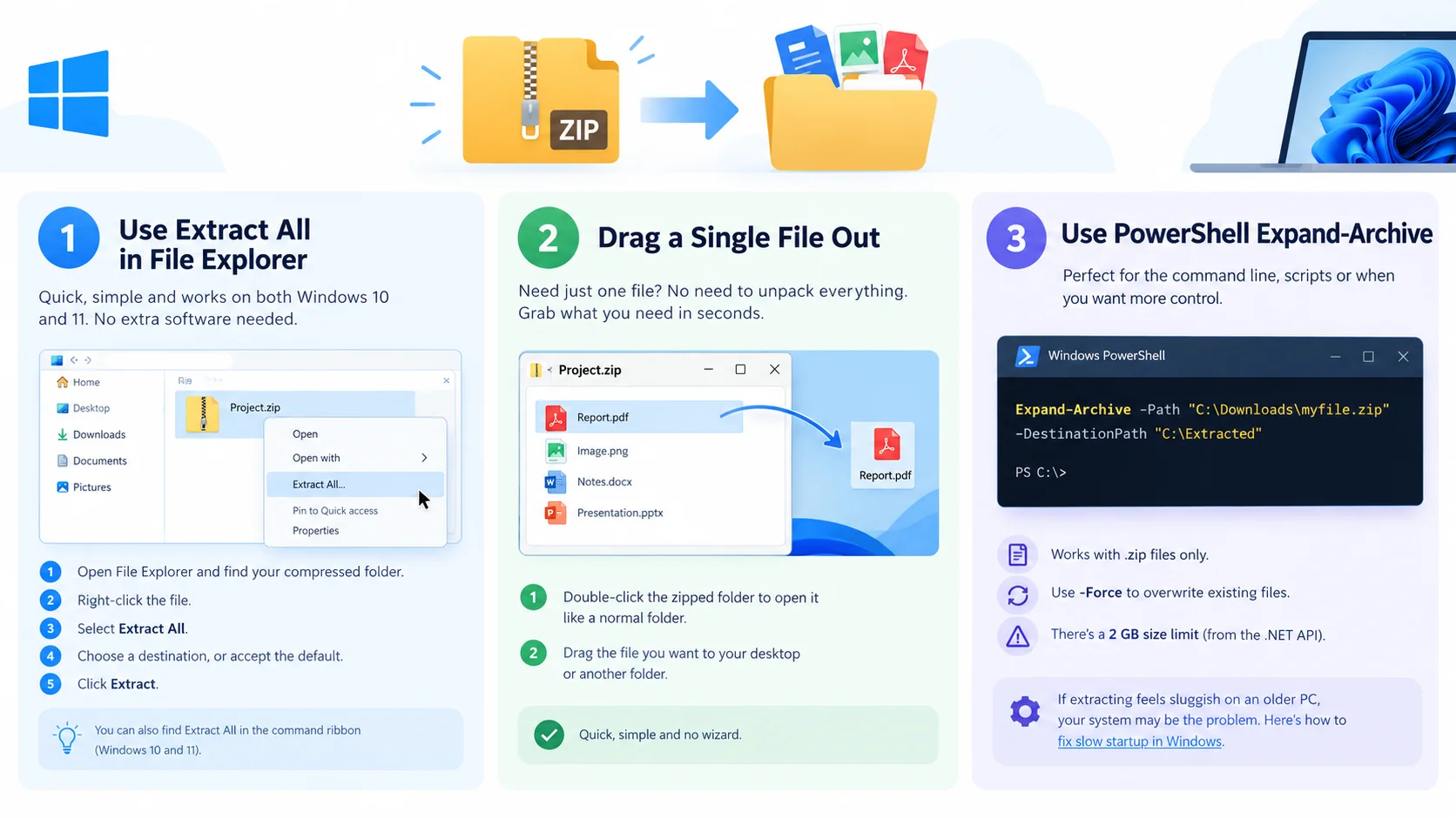
Method 1: Use Extract All in File Explorer
This is the method I use most of the time. It's quick, it works on Windows 10 and 11, and it needs no setup. If you only want the basics, this is the one to learn.
Open File Explorer and find your compressed folder.
Right-click the file.
Select Extract All.
Choose a destination, or accept the default.
Click Extract.
Microsoft's support page confirms you can also pick Extract All from the command ribbon.
Method 2: Drag a Single File Out
Sometimes you only need one file. Why unpack 500 files just to grab one PDF? You don't have to.
Double-click the zipped folder to open it like a normal folder. Then drag the file you want to your desktop or another folder.
That's it. Quick, simple and no wizard.
Method 3: Use PowerShell Expand-Archive
Now we're getting nerdy. This is perfect if you like the command line or need to unzip files inside a script. Open PowerShell and run:
Expand-Archive -Path "C:\Downloads\myfile.zip" -DestinationPath "C:\Extracted"
Microsoft's Expand-Archive documentation says it works with .zip files only, and that -Force overwrites existing files. It also notes a 2 GB size limit from the underlying .NET API. Hitting that limit? Jump to the large-file section below.
If extracting feels sluggish on an older PC, your system may be the problem. Here's how to fix slow startup in Windows.
How to Unzip a File on Mac
macOS makes this almost embarrassingly easy. There's no wizard, no menu and no confusion.
Apple built the tool in, and it just works. I'll show you the default method first, then a Terminal option for when you want more control.
Double-Click the ZIP File
Find the ZIP in Finder and double-click it. That's the whole process.
Behind the scenes, the built-in Archive Utility does the work. Apple's guide says the unzipped item appears in the same folder as the .zip file. If it won't open, make sure you have enough space on your Mac. If someone sent it to you, ask them to zip it again and resend it.
Unzip With Terminal
Prefer typing? Open Terminal and run unzip archive.zip. Add -d foldername to choose a destination.
It's the same unzip tool Linux uses, so I explain the options in the Linux section below. Handy when you're working with several files at once.
How to Unzip a File on iPhone, iPad and Android
Phones can handle ZIP files too. You just need to know where to tap. I get asked about this constantly, especially after someone downloads a ZIP attachment and stares at it.
No computer required. Here's how it works on each platform.
iPhone and iPad
Apple's guide for iPhone and iPad keeps it short:
Open the Files app.
Find your ZIP file.
Tap it.
A folder with the contents appears.
Tap the folder to open it.
Want to rename the new folder? Touch and hold it, then tap Rename.
Android
On Android, the easiest route is Files by Google. Google's help page lists these steps:
Open Files by Google and go to the folder with your .zip file.
Select the file.
Tap Extract.
Tick "Delete ZIP file" if you don't need the original.
Tap Done.
One catch: Google says the app supports ZIP files only. For RAR or 7z, you'll need a third-party file manager. A "memory full" error means you need to free up storage first.
How to Unzip a File on a Chromebook
Chromebooks work a little differently from other devices. Instead of dumping files into a folder straight away, ChromeOS treats the ZIP like a mounted drive.
That's actually pretty neat, because you can browse the contents immediately. Here's how it works.
Per Android Central's guide, open the Files app, go to Downloads, and double-click the .zip file. The archive mounts in the left navigation panel. Then you can open, edit or move any file inside.
How to Unzip a File on Linux
Linux folks, I haven't forgotten you. This is where unzipping gets really flexible. The terminal gives you precise control over what you extract and where it goes.
If you manage servers or write scripts, you'll use this constantly. Let's start with the basics.
Install and Run the Unzip Command
Many distributions include unzip. If yours doesn't, install it with your package manager, for example sudo apt install unzip on Debian or Ubuntu. Then extract with:
unzip archive.zip
By default, files land in your current directory. The Info-ZIP man page documents every option.
You'll mostly use these:
-d folderextracts to a specific destination folder.-llists the contents without extracting.-ttests the archive for errors.-nnever overwrites existing files.-ooverwrites without asking, so use it carefully.
Here's a pro tip from the man page: run unzip -tq yourfile.zip before extracting. It checks the CRC checksum and tells you whether the archive is intact.
What About tar.gz Files?
A tar.gz file isn't a ZIP, so unzip won't touch it. Use tar instead, as described in the GNU tar manual. The usual command is tar -xzf file.tar.gz.
How to Unzip Large, Split and Password-Protected Files
Sometimes a double-click isn't enough. Maybe the file is huge, split into parts or locked with a password.
These cases trip people up more than anything else. So here are the fixes, one by one.
Large Files
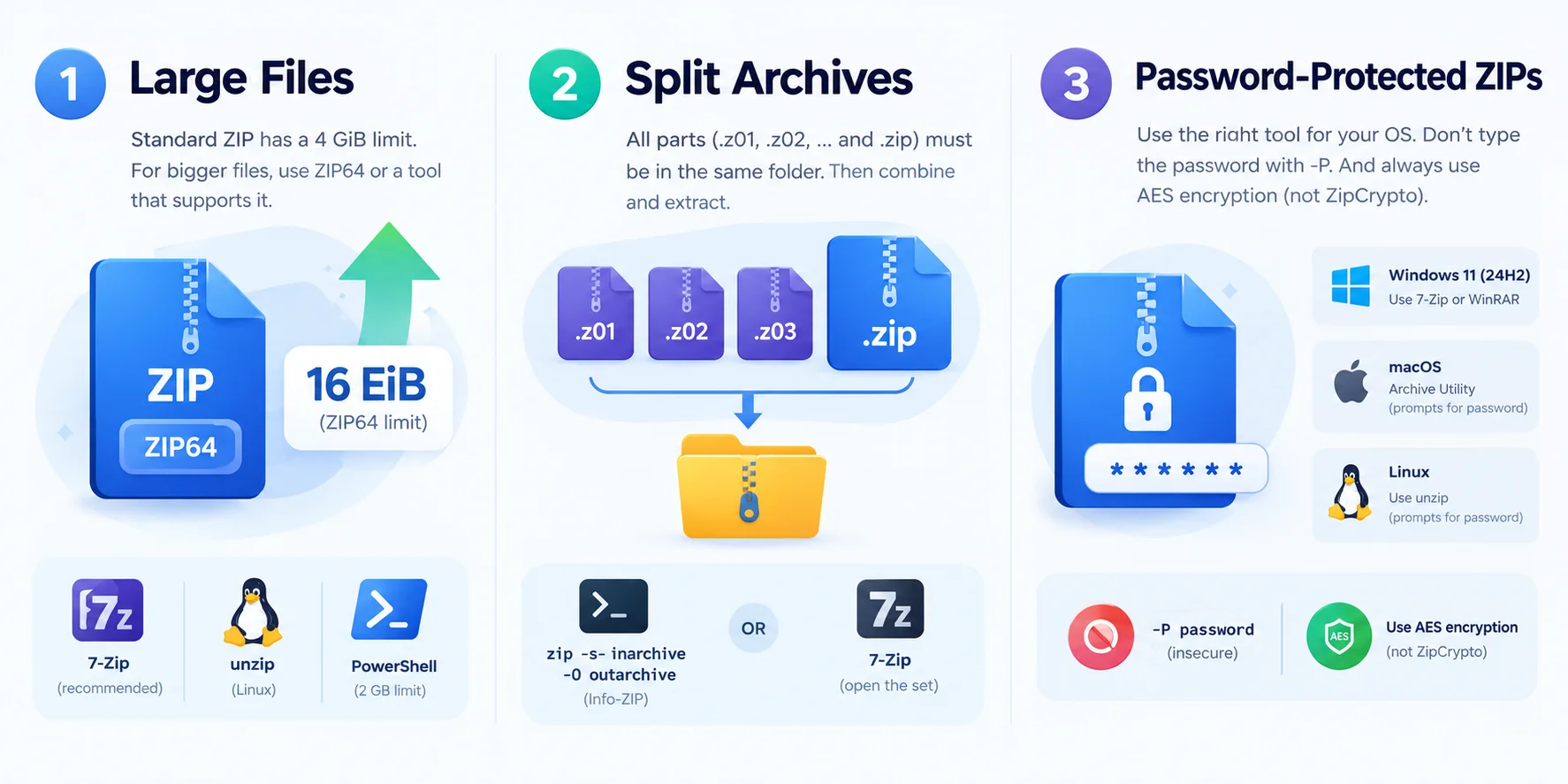
Standard ZIP has a hard ceiling. According to Wikipedia, it limits files and archives to 4 GiB, and caps an archive at 65,535 entries. The ZIP64 extension lifts those limits to 16 EiB.
Most modern tools support ZIP64. If a built-in tool chokes, try 7-Zip (see below) or unzip on Linux. PowerShell's Expand-Archive has its own 2 GB limit, as noted above.
Split Archives
Split archives show up as .z01, .z02 and a final .zip. You can't extract just one piece. You need all the parts in the same folder.
Info-ZIP's man page describes combining them with zip -s- inarchive -O outarchive, then extracting the single result. Alternatively, tools like 7-Zip can open the set for you.
Password-Protected ZIPs
This depends on your tool. Microsoft states that Windows 11 version 24H2 doesn't support operations on encrypted archives, so use 7-Zip or WinRAR there.
On Mac, MacMost reports that Archive Utility prompts for the password when you open the file. On Linux, run unzip and let it ask.
Never type the password inside the command with -P. The man page warns that it's insecure. Also, the legacy ZipCrypto encryption is known to be seriously flawed, so use AES encryption for anything sensitive. I explain how in how to password-protect a ZIP file.
How to Fix a ZIP File That Won't Open
You double-click, and nothing happens. Or you get an error. Frustrating, I know.
The good news: this is usually fixable. Most failures come down to a bad download, a full disk or a damaged archive. Work through these steps in order.
Re-download the file. Incomplete downloads are the number one cause.
Check your disk space. Apple specifically mentions this for Macs.
Test it. Run
unzip -t file.zipon Mac or Linux.Try 7-Zip. Its FAQ says most ZIPs it can't open have incorrect headers.
Ask the sender to re-create the archive.
If many files fail to open, a wider system issue could be involved. Our guide on how to update your BIOS covers one common fix.
If none of that works, the file is probably damaged beyond repair.
How to Unzip a File Safely
Unzipping is easy. Unzipping safely takes a bit more thought. Attackers love archives, because they're a classic way to sneak malware past casual inspection.
So before you extract that mystery attachment, read this section. It could save you a lot of trouble.
Watch Out for Malicious Attachments
Phishing emails with ZIP attachments are nothing new, and the tricks keep evolving. BleepingComputer reported in November 2024 that attackers merge multiple ZIP archives into one file. Different tools then show different contents: 7-Zip displayed only the first archive, WinRAR showed both, and Windows File Explorer sometimes failed to open the file.
My rules are simple:
Don't open unsolicited attachments.
Confirm the sender through another channel.
Be extra suspicious of unexpected password-protected ZIPs.
Scan files with updated antivirus before extracting.
Understand Zip Bombs and Zip Slip
Two more terms worth knowing. A zip bomb is a tiny archive that expands into a huge amount of data and overwhelms your system. Wikipedia notes that DEFLATE's theoretical maximum compression is about 1032 to one, but crafted archives can go far beyond that.
Zip Slip is different. SecurityWeek describes it as a directory traversal flaw: extraction code that doesn't validate paths can write files outside the target folder. The unzip man page says modern unzip strips ../ path components by default.
Frequently Asked Questions About Unzipping Files
You probably still have a question or two. These are the ones I hear most. Each answer is short and direct.
Can Windows unzip a password-protected file?
Not natively on Windows 11 24H2. Microsoft says it doesn't support operations on encrypted archives. Use 7-Zip or WinRAR instead, and enter the password when prompted.
Why won't my ZIP file open?
The usual causes are an incomplete download, a full disk or a damaged archive. Re-download the file, free up space, test it with unzip -t, then try 7-Zip.
Is it safe to unzip email attachments?
Only if you trust the sender. Treat unexpected ZIP attachments as risky, verify the sender another way, and scan the file before extracting it.
How do I unzip a file larger than 4 GB?
Standard ZIP caps files at 4 GiB, but the ZIP64 extension removes that limit. Use a tool that supports ZIP64, such as 7-Zip or Linux unzip.
Can I unzip a file on my phone without an app?
Yes. On iPhone and iPad, tap the ZIP in the Files app. On Android, use Files by Google and tap Extract. Both are built in or free.
How do I unzip a tar.gz file?
Use tar -xzf file.tar.gz on Linux or Mac. Windows 11 can also open many archive formats natively through the open-source libarchive project.
Final Thoughts: How to Unzip a File With Confidence
So that's how to unzip a file on pretty much any device. Use your built-in tool for everyday ZIPs, keep 7-Zip around for strange formats, and never extract files you don't trust.
Once your files are out, you may need to convert them too. See our best MP3 converter guide for audio files
Want to go deeper? Read my explainer on file compression or compare formats in RAR vs ZIP.
Got a ZIP file waiting on your desktop right now? Go extract it. You've got this.
Found this helpful? Share it with others who might benefit from these insights!
Submit Your AI Tool