
Quick answer: To update your BIOS, check your current version using msinfo32, download the exact update file for your motherboard or PC model from the manufacturer's official site, copy it to a FAT32-formatted USB drive, then flash it through your BIOS menu (using a tool like EZ Flash or M-Flash) or your manufacturer's Windows utility. The whole process takes 5–15 minutes, and the golden rule is simple: never interrupt the flash once it starts.
Now let's break this down properly.
Let's be honest.
Updating your BIOS sounds scary.
You've probably heard horror stories about "bricked" motherboards, failed updates, and computers that never turn on again.
I get it. I felt the same way the first time I had to flash a BIOS on my own rig.
But here's the truth: updating your BIOS (or its modern cousin, UEFI firmware) doesn't have to be a nerve-wracking experience.
If your PC has also been booting slower than usual, that's worth a look too — check out our guide on how to fix slow startup on Windows to rule out other causes before assuming it's your BIOS.
In this guide, I'm going to walk you through exactly how to do it — safely, step-by-step, without losing your mind (or your motherboard).
By the end of this post, you'll know:
What a BIOS update actually does
When you should (and shouldn't) update
The exact steps to update BIOS on any system
How to avoid the most common mistakes that cause a failed flash
A quick comparison of every update method out there
Answers to the questions people ask most
Sound good? Let's dive in.
What Is a BIOS Update, Exactly?
Okay, quick refresher before we get into the "how."
Your BIOS (Basic Input/Output System) is the very first piece of software that runs the second you hit the power button.
Think of it like the "ignition system" of your PC. It wakes up your hardware, checks everything's working, and hands things off to your operating system.
A BIOS update — sometimes called a firmware update — replaces that old ignition system with a newer, smarter one.
And according to SuperOps' detailed breakdown, keeping your BIOS current mainly helps in three ways: better hardware compatibility, tighter firmware security, and improved system stability.
Basically? A fresh BIOS keeps your machine talking to your hardware the right way.
Related read: if you're new to this, check out our guide on BIOS vs UEFI explained before going further — it'll help the rest of this article click faster.
BIOS vs. UEFI: What's the Difference?
Quick tangent, because people get confused here all the time.
UEFI (Unified Extensible Firmware Interface) is basically the modern replacement for old-school BIOS. Most computers made in the last decade actually run UEFI, even though everyone (including me) still calls it "BIOS" out of habit.
Functionally, when I say "update your BIOS" in this article, I mean updating your motherboard's firmware — whether that's technically BIOS or UEFI under the hood.
Don't overthink it. The process is nearly identical either way.
Do You Actually Need to Update Your BIOS?
Here's something most guides won't tell you straight up.
You probably don't need to update your BIOS right now.
Seriously.
Intel's own guidance is refreshingly honest about this: a BIOS update usually won't unlock extra performance, and it's not recommended for systems that are already running fine.
So when should you update?
You just installed a new CPU or GPU that isn't recognized
You're chasing a security patch for a known firmware vulnerability (manufacturers regularly issue CVE-linked BIOS patches — in 2025 alone, several major vendors released emergency firmware fixes for UEFI-level exploits, which is exactly the kind of update worth prioritizing)
You're experiencing random crashes, boot failures, or weird hardware conflicts (though if it's specifically slow boot times, check our guide on fixing slow Windows startup first, it might be a simpler fix than a BIOS flash)
The manufacturer specifically recommends it for a stability fix
If none of that applies to you, and your PC is humming along nicely? Leave it alone. "If it ain't broke" applies hard here.
Before You Update: 3 Things You Must Do First
This is the part people skip. And it's exactly why BIOS updates go wrong.
Don't skip this section. I mean it.
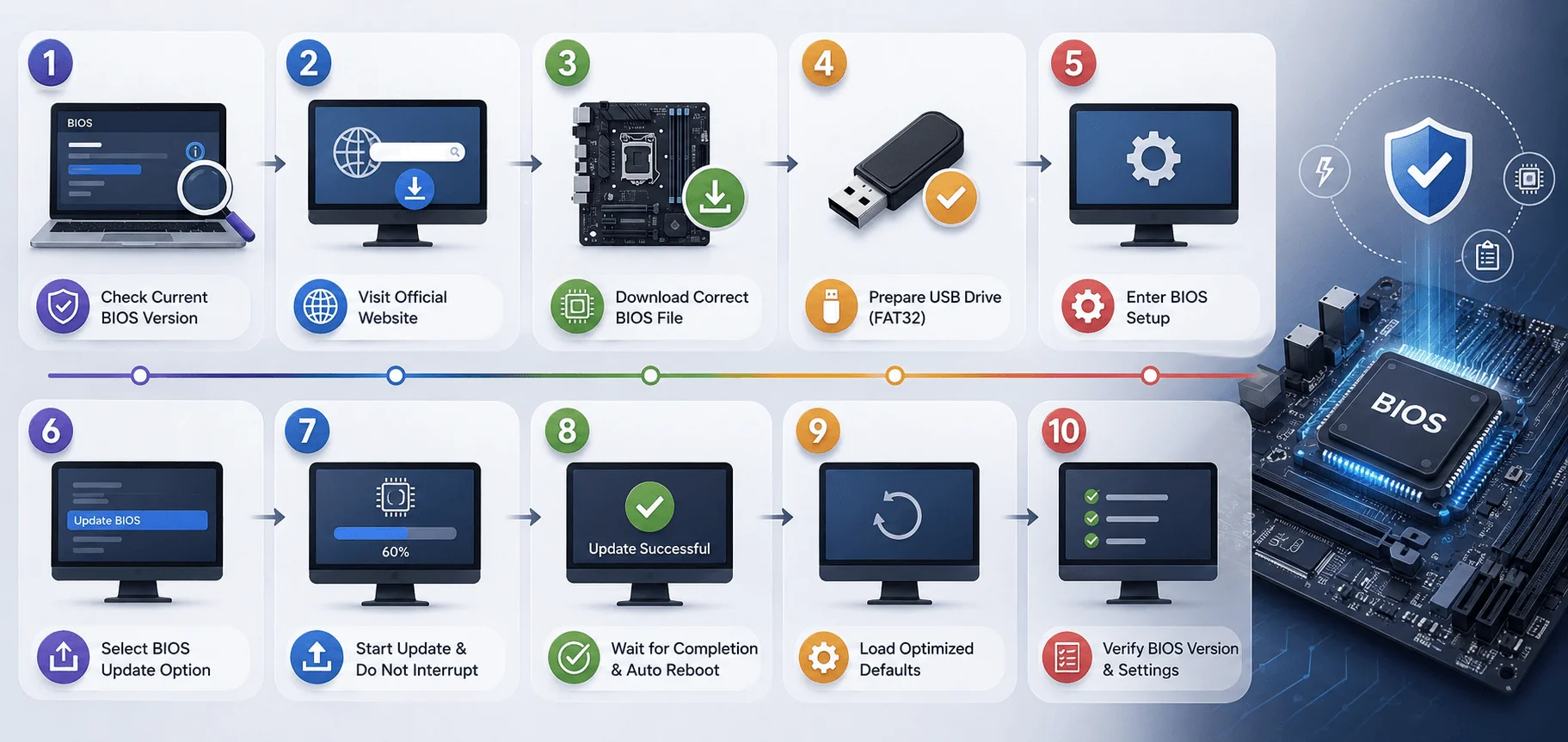
Step 1: Check Your Current BIOS Version
You can't know if you need an update if you don't know what you're running.
There are two easy ways to check, per Microsoft's own support documentation:
Open the Windows search bar, type
msinfo32, hit Enter, and look for "BIOS Version/Date" under System Summary.Or, restart your PC and repeatedly tap F2, F10, or Delete during boot to jump straight into your BIOS setup screen.
Either way, jot down that version number. You'll need it in a second.
Step 2: Back Up Your Data
I know, I know — updating BIOS doesn't usually touch your personal files.
But "usually" isn't "always."
As HP recommends, it's always smart to back up anything important before touching your system's firmware. Better safe than sorry, right?
If you're running BitLocker encryption, HP also suggests temporarily suspending it before the update — otherwise, you might run into an annoying recovery-key prompt afterward.
Step 3: Secure Your Power Source
This one's non-negotiable.
If you're on a laptop, plug it in. Don't run this on battery.
If you're on a desktop, make sure you're not mid-thunderstorm with a flickering power supply.
Why does this matter so much? Because — and I cannot stress this enough — a power loss during a BIOS flash can corrupt the firmware entirely, leaving your machine unable to boot at all. If your PC has been calls this the single rule that matters most, and honestly, they're right.
Compare Your BIOS Update Options
Not sure which method fits you? Here's a side-by-side so you can pick fast instead of guessing.
Method | Difficulty | Risk Level | Time Required | Best For |
|---|---|---|---|---|
In-BIOS Flash Tool (EZ Flash, M-Flash, Q-Flash) | Medium | Low | 5–10 min | Most users — the safest, most direct method |
Vendor Windows Utility (ASUS EZ Update, MSI Center, HP Support Assistant) | Easy | Medium | 10–15 min | Beginners who want a guided wizard |
BIOS Flashback Button | Easy | Low | 5–10 min | Newer motherboards, recovering a dead build |
Windows Update (Dell, etc.) | Very Easy | Low | 5 min | Set-it-and-forget-it users on supported brands |
How to Update BIOS: Step-by-Step Guide
Alright. Prep work's done. Let's actually do this.
Step 1: Download the Correct BIOS File
Head over to your motherboard manufacturer's official support site — think ASUS, MSI, Gigabyte, Dell, HP, or Lenovo.
Search for your exact model number. Not "close enough." Exact.
This step matters more than almost anything else in this whole process. As Syncro puts it, installing the wrong file for your model is the single most common cause of a failed or bricked flash.
Download the latest stable BIOS version, and extract it if it comes zipped.
Step 2: Prepare a Bootable USB Drive
Grab a spare USB flash drive — nothing fancy, 4GB or more will do.
Now:
Format it to FAT32 (this step trips people up constantly, so don't skip it)
Copy the BIOS file straight to the root directory — not inside a folder
Double-check the file's actually there
According to MSI's own support page, placing files inside subfolders can cause reading errors during the flash. Keep it simple. Root folder only.
Step 3: Choose Your Update Method
Here's where things branch a bit, depending on your hardware.
Method A: In-BIOS Flash Tool (Most Reliable)
Restart your PC and tap Delete, F2, or F10 repeatedly to enter BIOS setup
Look for a tool named something like EZ Flash, M-Flash, or Q-Flash
Select your USB drive, then choose the BIOS file
Confirm, and let it run
MSI's guide is crystal clear: do not turn off your computer, disconnect power, or remove the USB drive during the update process.
Method B: Vendor Windows Utility
ASUS's official documentation shows this process clearly:
Download and run the manufacturer's BIOS update utility
Follow the setup wizard
Accept the license agreement
Let the tool install the update and restart your PC automatically
Method C: BIOS Flashback Button
Per HP's walkthrough:
Copy your BIOS file to a FAT32 USB drive
Plug the drive into the specific Flashback USB port
Press the physical Flashback button
Wait for the indicator light to stop blinking
Method D: Windows Update (Some Brands Only)
As Dell explains, find these under Optional Updates as "Dell Firmware." Click, install, restart.
Step 4: Let It Finish
Intel notes a typical update takes around five minutes, though it can stretch closer to fifteen.
Your screen might flicker or go black briefly. That's normal. Don't restart, don't unplug, don't panic.
Step 5: Verify the Update Worked
Go back into BIOS setup, or re-check via msinfo32, and confirm the version number matches what you downloaded.
If it matches? You're done.
Common BIOS Update Problems (And How to Fix Them)
Boot failure after the update — Clear the CMOS (usually a small battery or jumper on the motherboard) to reset to default.
System freezes mid-update — Most modern boards have a dual BIOS backup chip designed exactly for this recovery scenario.
Firmware mismatch errors — Almost always the wrong file for your exact model. Go back and re-check.
Unusual behavior post-update — Settings likely reset to default. Head into BIOS setup and reconfigure boot order, RAM timings, etc.
Frequently Asked Questions
Can I update BIOS without a CPU installed?
Yes — if your motherboard supports BIOS Flashback, you can flash firmware using just the Flashback USB port and button, with no CPU, RAM, or GPU required.
Does updating BIOS delete my files?
No, a BIOS update doesn't touch your personal data or installed programs. It only replaces the firmware. Still, back up your files first as a precaution.
How often should I update my BIOS?
There's no fixed schedule. Only update when you need new hardware support, a security patch, or a specific stability fix — not just because a new version exists.
What happens if my BIOS update fails?
Most modern motherboards have built-in recovery via dual BIOS chips or a recovery mode. Clearing the CMOS often resolves boot failures after a bad flash.
Is it safe to update BIOS on a laptop?
Yes, as long as it's plugged into power the entire time. Never attempt a BIOS update on battery power alone.
Final Thoughts: Should You Update Your BIOS Today?
Look, I'll leave you with this.
Updating your BIOS isn't something to fear — but it's also not something to do casually, just because a new version popped up.
Do it when you need a specific fix, a security patch, or new hardware support.
Follow the steps above carefully, don't rush the process, and above all — never interrupt the flash once it starts.
Do that, and you'll be just fine.
Found this helpful? Share it with others who might benefit from these insights!
Submit Your AI Tool